Max Redundancy with 3-2-1!

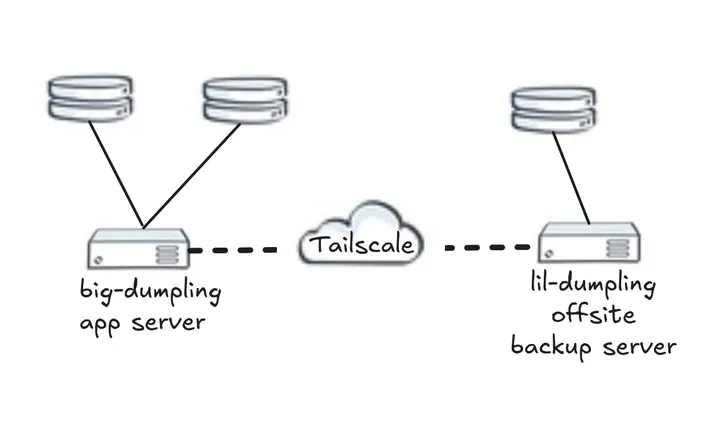 Homelab Network Diagram
Introduction
Backups are important and an often overlooked aspect in the minds of the day-to-day average joes. I definitely was reminded the importance of having a backup strategy during a failure of a routine kernel upgrade on my main Linux workhorse a few years ago. In this particular absolut tragedy, I count myself incredibly lucky at being able to leverage DMDE — Disk Editor & Data Recovery Software to successfully recover most of my data.
Backups are even more doubly important in production enterprise systems holding client and/or otherwise business-critical data. This of course, should be an obvious and needless-to-mention axiom, and a lack of a backup strategy or adequate disaster recovery response plan would be utterly devastating to any meaningfully sized organization, resulting in all sorts of legal and/or compliance risk, not to mention potential financial losses.
I personally might not be a organization beholden to the risks of non-compliance to such industry and regulatory frameworks and the repurcussions that come with it, but I do have what I consider to be critically important personal data whose loss would be a true tragedy on a personal level in the form of family photos, historical personal budget/financial data, media server configuration setting files, personally curated recipes collection, and more in the form of a variety of self-hosted applications running on individual docker containers on my home server.
The 3-2-1 Strategy
The 3-2-1 backup strategy is one of the most widely recommended approaches for protecting data. It’s simple, flexible, and works across personal and enterprise contexts.
This strategy comprises of having 3 copies of your data:
- the primary “prod” data; and
- 2 backup copies, 1 of which is stored offsite.
Having a copy of the data located offsite provides geographic separation, which reduces the risk of data loss via fire, theft, floods, or other natural or man-made disasters!
Offsite can mean cloud storage, a safety deposit box, or a drive you rotate to another location.
Our Implementation
In our specific case, we will implement a version of the 3-2-1 strategy using 3 SSD harddisks:
- SSD #1 - our primary drive installed in a Hard Disk enclosure connected to our home application server
- SSD #2 - our backup drive attached directly to our home application server via a PCI-to-usb adapter
- SSD #3 - our offsite backup drive attached to a separate backup server located in geographically separated area from our main application server
The relevant directory structure on the primary application server is the following:
/home/s1na/
├── media-stack
│   └── starr
│       ├── docker-compose.yml
│       ├── pinchflat
│       │   └── config/
│       ├── jellyseer
│       │   └── config/
│       ├── jellyfin
│       │   ├── cache/
│       │   └── config/
│       └── other-media-server-related-docker-containers...
│           └── config/
/mnt/f15/
    ├── ntfy
    │   ├── docker-compose.yml
    │   ├── config
    │   │   └── server.yml
    │   └── cache/
    └── docker-containers
        ├── firefly
        │   ├── docker-compose.yml
        │   └── volumes/
        ├── immich
        │   ├── docker-compose.yml
        │   └── volumes/
        ├── calibre
        │   ├── docker-compose.yml
        │   └── volumes/
        ├── mealie
        │   ├── docker-compose.yml
        │   └── volumes/
        └── other-hosted-applications...
            ├── docker-compose.yml
            └── volumes/
In implementing our 3-2-1 backup strategy, we are interested primarily in the docker applications located in /mnt/f15/docker-containers but only the config data in our *arr media stack folders. For the media server, the actual media data lives at a separate location and the sheer volume of media data (movies + tv shows) and the relatively low importance make including full backups of the media server data impractical.
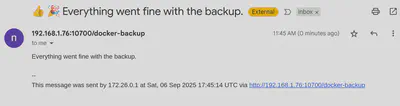
We will also be using ntfy in order to trigger email notifications on success or failure. The shutdown of all application containers within the docker-containers directory before a backup copy is taken is recommended to reduce the risk of integrity or data corruption issues. Hence we run an instance of ntfy outside of /mnt/f15/docker-containers to ensure that ntfy is always running to report the status of the backup process, both success and failure.
nfty
Docker compose file for ntfy
services:
  ntfy:
    image: binwiederhier/ntfy
    container_name: ntfy
    command:
      - serve
    volumes:
      - ./cache:/var/cache/ntfy
      - ./config:/etc/ntfy
    ports:
      - 10700:80
    healthcheck: # optional: remember to adapt the host:port to your environment
        test: ["CMD-SHELL", "wget -q --tries=1 http://localhost:80/v1/health -O - | grep -Eo '\"healthy\"\\s*:\\s*true' || exit 1"]
        interval: 60s
        timeout: 10s
        retries: 3
        start_period: 40s
    restart: unless-stopped
To set up access to Gmail smtp server, we need a server.yml file within the mapped config volume:
# this is the local ip of the application server
# ntfy is running out of port 10700
base-url: http://192.168.1.76:10700
smtp-sender-addr: "smtp.gmail.com:587"
smtp-sender-user: "sender.email.addr@gmail.com"
smtp-sender-pass: "app-password"
smtp-sender-from: "sender.email.addr@gmail.com"
As of writing, Google now requires the use of something called an ‘Application Password’.
With the ntfy container spun up and running, email notifications can then be triggered via a HTTP POST request:
curl \
    -H "Email: recipient.email.addr@gmail.com" \
    -H "Tags: +1,tada" \
    -d "Everything went fine with the backup." \
     http://localhost:10700/docker-backup
Borg & Rsync
After extensive consultation with the likes of ChatGPT and Claude, Borg will be the primary backup tool we use to implement our 3-2-1 strategy. Borg has considerable strengths when compared to Rsync, primarily which is its ability to perform versioned and deduplicated incremental backups.
Prior to implementing Borg for this strategy, Rsync was used in a previous iteration of this strategy. Rsync would periodically make a incremental backup copy which overrides the existing backup copy.
Versioned backups are critically important for the reason that if the current prod data somehow became corrupted and unreadable, making a copy of this corrupted unreadable data and then overwriting the existing readable backup copy would then result in an absolut tragic loss of data!
# initiating a new empty borg backup dir
borg init --encryption=none /mnt/docker/back/up/dir
# executing the backup with some nifty informative flags
borg create --stats --progress --compression zstd,9 /mnt/docker/back/up/dir::docker-backup-$(date +%F) /source/dir/to/back/up
# list all backup copies
borg list /mnt/docker/back/up/dir
# prune to remove old outdated backup copies
borg prune -v --keep-daily=14 --keep-weekly=4 --keep-monthly=6 --keep-yearly=2 /mnt/docker/back/up/dir
Another strength of Borg is its ability to perform encryption at rest via the –encryption mode flag. In our specific implementation, I made the calculated trade-off opting not to encrypt data at rest since none of my servers or services are publicly internet-facing.
Communication channels between the prod application server and the remote offsite backup server is done via Tailscale, giving us a reliable connection while at the same time not having either servers exposing naked services directly to the scary dangerous internet.
The Backup Scripts
We will create 2 separate backup scripts:
- one for backing up the media server configuration files (in case tragedy ever befalls our *arr stack, we can quickly spin up a fully configured plug-n-play replacement); and
- one for a full backing up of the more ‘critical’ self-hosted applicationa and their respective data.
The *arr stack media server
Containers running as part of the media server are specified in the single docker-compose.yml file located at the home/s1na/media-stack/starr directory.
The following bash script:
- Checks that both the source and destination directories exist.
- If those checks pass, it then stops the containers specified in home/s1na/media-stack/starr/docker-compose.yml.
- The script then calls Borg to perform the incremental backup and prunes old outdated copies.
- The containers are then spun up.
- Email notifications are executed via ntfy if any intermediary step fails or if the backup is successful
#!/bin/bash

# Define variables
BACKUP_DIR_LOCAL="/mnt/bae/media-server-config-backup-dir"
DOCKER_CONTAINERS_DIR='/home/s1na/media-stack'
LOG_FILE="/var/log/media-server-config-backup.log"


# Function to send email via ntfy
send_email() {
    local subject=$1
    local message=$2
    curl \
        -H "Email: recipient.email.addr@gmail.com" \
        -H "Tags: cd" \
        -d "$subject $message" \
         http://192.168.1.76:10700/media-server-config-backup
}


# Log function
log() {
    echo "$(date '+%Y-%m-%d %H:%M:%S') - $1" | sudo tee -a "$LOG_FILE" > /dev/null
}

# Start script
log "Backup process started."

# Check if backup directory exists
if [ ! -d "$BACKUP_DIR_LOCAL" ]; then
    log "Backup directory $BACKUP_DIR_LOCAL does not exist."
    send_email "Media Server Config Backup Failed" "Backup directory $BACKUP_DIR_LOCAL does not exist."
    exit 1
fi

# Check if backup directory exists
if [ ! -d "$DOCKER_CONTAINERS_DIR" ]; then
    log "Docker-containers directory $DOCKER_CONTAINERS_DIR does not exist."
    send_email "Media Server Config Backup Failed" "Docker-containers directory $DOCKER_CONTAINERS_DIR does not exist."
    exit 1
fi


# Stop all containers
log "Stopping all containers..."
for app_dir in "$DOCKER_CONTAINERS_DIR"/*; do
    if [ -d "$app_dir" ] && [ -f "$app_dir/docker-compose.yml" ]; then
        log "Stopping containers for app in: $app_dir"

        # Change to the app directory
        cd "$app_dir" || {
            log "Failed to change directory to $app_dir";
            send_email "Media Server Config Backup Failed" "Failed to change dir while trying to stop containers into $app_dir during the backup process"
            exit 1;
        }

        if sudo docker compose down; then
            log "Containers for app $app_dir stopped successfully."
        else
            log "Failed to stop containers for app $app_dir."
            send_email "Media Server Config Backup Failed" "Failed to stop containers in $app_dir."
            exit 1
        fi
    fi
done

# Borg incremental backup
log "Starting borg backup..."
if sudo borg create --stats --progress --compression zstd,9 $BACKUP_DIR_LOCAL::media-server-config-backup-$(date +%F) $DOCKER_CONTAINERS_DIR; then
    log "Borg backup completed successfully."
else
    log "Borg backup failed."
    send_email "Media Server Config Backup Failed" "Borg backup failed."
    exit 1
fi

# Borg Clean up
if sudo borg prune -v --keep-daily=14 --keep-weekly=4 --keep-monthly=12 --keep-yearly=5 $BACKUP_DIR_LOCAL; then
    log "Borg cleanup completed successfully."
else
    log "Bor cleanup failed."
    send_email "Docker Cleanup Failed" "Borg Cleanup failed."
    exit 1
fi

# Restart containers
log "Restarting containers..."
for app_dir in "$DOCKER_CONTAINERS_DIR"/*; do
    if [ -d "$app_dir" ] && [ -f "$app_dir/docker-compose.yml" ]; then
        log "Restarting containers for app in: $app_dir"

        # Change to the app directory
        cd "$app_dir" || {
            log "Failed to change directory to $app_dir";
            send_email "Media Server Config Backup Failed" "Failed to change dir into $app_dir during the backup process"
            exit 1;
        }

        if sudo docker compose up -d; then
            log "Containers for app $app_dir restarted successfully."
        else
            log "Failed to restart containers for app $app_dir."
            send_email "Media Server Config Backup Failed" "Failed to restart containers in $app_dir."
            exit 1
        fi
    fi
done

log "Backup process completed successfully."
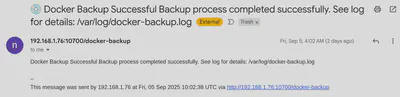
send_email "Media Server Config Backup Successful" "Backup process completed successfully. See log for details: $LOG_FILE"
exit 0
This script is periodically run via cron:
# runs every first of the month at 6:00 AM MST.
0 6 1 * * /mnt/f15/desktop/backup-scripts/media_server_config_backup_script.sh
The self-hosted applications
The containers in the /mnt/f15/docker-containers directory form the critical assets where we want to implement full backup of everything – configuration settings as well as full application data and files. The goal is for speedy and full recovery in the event of a full disk failure of the primary harddisk.
Each self-hosted application lives in its own directory within the docker-containers directory. Typically, each of these application directories contains a docker-compose.yml file and a volumes subdirectory where all application configuration files and data files live.
# Typical directory structure
/mnt/f15/docker-containers
          └── some-application
              ├── docker-compose.yml
              └── volumes
                  ├── config
                  │   └── config-files
                  ├── data
                  │   └── data-files
                  └── cache-dir-or-other-app-specific-volume-dirs
                      └── cache-files-or-other-app-specific-files
The backup bash script targeting these applications is similar to the one for the media config backup, with a small difference in how containers are stopped and started. The following takes place:
- Check for existence of both source and destination directories
- Stops all containers by iteratively entering each subdir of /mnt/f15/docker-containers/docker-containers
- Borg performs the incremental backup and prunes old outdated copies.
- The containers are then spun back up.
- Email notifications are executed via ntfy if any intermediary step fails or if the backup is successful.
#!/bin/bash

# Define variables
BACKUP_DIR_LOCAL="/mnt/bae/borg-backup-dir"
DOCKER_CONTAINERS_DIR='/mnt/f15/docker-containers'
LOG_FILE="/var/log/docker-backup.log"


# Function to send email via ntfy
send_email() {
    local subject=$1
    local message=$2
    curl \
        -H "Email: recipient.email.addr@gmail.com" \
        -H "Tags: cd" \
        -d "$subject $message" \
         http://192.168.1.76:10700/docker-backup
}


# Log function
log() {
    echo "$(date '+%Y-%m-%d %H:%M:%S') - $1" | sudo tee -a "$LOG_FILE" > /dev/null
}

# Start script
log "Backup process started."

# Check if backup directory exists
if [ ! -d "$BACKUP_DIR_LOCAL" ]; then
    log "Backup directory $BACKUP_DIR_LOCAL does not exist."
    send_email "Docker Backup Failed" "Backup directory $BACKUP_DIR_LOCAL does not exist."
    exit 1
fi

# Check if backup directory exists
if [ ! -d "$DOCKER_CONTAINERS_DIR" ]; then
    log "Docker-containers directory $DOCKER_CONTAINERS_DIR does not exist."
    send_email "Docker Backup Failed" "Docker-containers directory $DOCKER_CONTAINERS_DIR does not exist."
    exit 1
fi


# Stop all containers
log "Stopping all containers..."
for app_dir in "$DOCKER_CONTAINERS_DIR"/*; do
    if [ -d "$app_dir" ] && [ -f "$app_dir/docker-compose.yml" ]; then
        log "Stopping containers for app in: $app_dir"

        # Change to the app directory
        cd "$app_dir" || {
            log "Failed to change directory to $app_dir";
            send_email "Docker Backup Failed" "Failed to change dir while trying to stop containers into $app_dir during the backup process"
            exit 1;
        }

        if sudo docker compose down; then
            log "Containers for app $app_dir stopped successfully."
        else
            log "Failed to stop containers for app $app_dir."
            send_email "Docker Backup Failed" "Failed to stop containers in $app_dir."
            exit 1
        fi
    fi
done

# Borg incremental backup
log "Starting borg backup..."
if sudo borg create --stats --progress --compression zstd,9 $BACKUP_DIR_LOCAL::docker-backup-$(date +%F) $DOCKER_CONTAINERS_DIR; then
    log "Borg backup completed successfully."
else
    log "Borg backup failed."
    send_email "Docker Backup Failed" "Borg backup failed."
    exit 1
fi

# Borg Clean up
if sudo borg prune -v --keep-daily=14 --keep-weekly=4 --keep-monthly=12 --keep-yearly=5 $BACKUP_DIR_LOCAL; then
    log "Borg cleanup completed successfully."
else
    log "Bor cleanup failed."
    send_email "Docker Cleanup Failed" "Borg Cleanup failed."
    exit 1
fi

# Restart containers
log "Restarting containers..."
for app_dir in "$DOCKER_CONTAINERS_DIR"/*; do
    if [ -d "$app_dir" ] && [ -f "$app_dir/docker-compose.yml" ]; then
        log "Restarting containers for app in: $app_dir"

        # Change to the app directory
        cd "$app_dir" || {
            log "Failed to change directory to $app_dir";
            send_email "Docker Backup Failed" "Failed to change dir into $app_dir during the backup process"
            exit 1;
        }

        if sudo docker compose up -d; then
            log "Containers for app $app_dir restarted successfully."
        else
            log "Failed to restart containers for app $app_dir."
            send_email "Docker Backup Failed" "Failed to restart containers in $app_dir."
            exit 1
        fi
    fi
done

log "Backup process completed successfully."
send_email "Docker Backup Successful" "Backup process completed successfully. See log for details: $LOG_FILE"
exit 0
The crontab entry for this:
# runs every other day at 4:00 AM MST
0 4 */2 * * /mnt/f15/desktop/backup-scripts/docker_backup_script.sh
The resultant local backups
s1na@big-dumpling:~$ borg list /mnt/bae/docker-backup-dir/
docker-backup-2025-06-19             Wed, 2025-06-18 21:52:46 [4f175980a4ca28ad26ec8a14e224b6aa5c4c5a0485027e5b6dfee33c81de88dd]
docker-backup-2025-07-13             Sat, 2025-07-12 23:28:56 [492cb6d014c6bac827cd21f0f10b5feba652342039af8319328361da8e79aab8]
docker-backup-2025-07-21             Sun, 2025-07-20 22:01:00 [23fb593765cf59f8f7c99edf9d98a51609c3826df2c37fceba117a17ec20427e]
docker-backup-2025-07-27             Sat, 2025-07-26 22:00:59 [aec28e0224ebcb6a8ae8ba0d9fffb8f84a9fb64d67e9281c5c0097fa40e93496]
docker-backup-2025-08-01             Thu, 2025-07-31 22:01:00 [e32cef441520f19e4b62752fa1c1bd9792baa4f311063db3dc301075b79bef9d]
docker-backup-2025-08-03             Sat, 2025-08-02 22:00:58 [449d8d699abc67f88d7dac8efc4a7a254dd22d4ae75375479b40c88366bd5726]
docker-backup-2025-08-09             Fri, 2025-08-08 22:01:03 [93311a0e5eacc7564e3c0471ecdec5da051949153b018bb2ddceef7db796b5af]
docker-backup-2025-08-11             Sun, 2025-08-10 22:01:03 [2f25c96fc8a919062015f24b150e9289417ab73366feb4ae841bb94d14b9f59d]
docker-backup-2025-08-13             Wed, 2025-08-13 04:01:04 [f8318d0f435d0ecc3f018c42a981696abdea287761d0c059d7e6b4227b581872]
docker-backup-2025-08-15             Fri, 2025-08-15 04:01:01 [7c41a0f970d653bd6bcd3799ed62d0b6ede0f1a3f241283b94418acf0847193c]
docker-backup-2025-08-19             Tue, 2025-08-19 04:01:04 [abd740749118c55068e7dcb87c12ed105986e8691ea076205c8d78ca77bf41d7]
docker-backup-2025-08-21             Thu, 2025-08-21 04:01:00 [da9ddb1a6cc6f72e5cc46b328b321472d710230c7a3f5d64979e51bec53cb247]
docker-backup-2025-08-23             Sat, 2025-08-23 04:00:50 [fb0c86b220a22bb9d7343ddf97a55f4b35a4e32893b2325e37086552195a309d]
docker-backup-2025-08-25             Mon, 2025-08-25 04:00:51 [9f3e9f2c3ddd8fe514608995791254eea6ea820bad38f17c250f2a320fa82a5c]
docker-backup-2025-08-27             Wed, 2025-08-27 04:00:50 [5727271708eefe625c9d1d12cff43c433df07231777af274b4dcda6ab1ce6ce1]
docker-backup-2025-08-29             Fri, 2025-08-29 04:00:55 [1a5d6b36da5a02c29750dccdcbb9cb74de2899e992c0cd90809c9677fd5d9149]
docker-backup-2025-08-31             Sun, 2025-08-31 04:00:51 [2cf17793a4ae580007d504518209d45fd8b352b7b41150b8230da5b991671c08]
docker-backup-2025-09-01             Mon, 2025-09-01 04:00:55 [87c4d2ad57f27cdded1735baa346e01efbe1cf7f5a588205ea62dded8cff7892]
docker-backup-2025-09-03             Wed, 2025-09-03 04:00:51 [71234a94c8836af7c2baaa36956051d15f7c8d34c5474f304252ec2bf9cfc2c3]
docker-backup-2025-09-05             Fri, 2025-09-05 04:00:52 [6db1ecd6da8ac1173366266a41867453ef19d57f84c30611b7cc98af4e77c725]

s1na@big-dumpling:~$ borg info /mnt/bae/borg-backup-dir/
Repository ID: 2290625c5b22dc05897fe230602d386c376780016a6f393cf9578c9a0b73008f
Location: /mnt/bae/docker-backup-dir
Encrypted: No
Cache: /root/.cache/borg/2290625c5b22dc05897fe230602d386c376780016a6f393cf9578c9a0b73008f
Security dir: /root/.config/borg/security/2290625c5b22dc05897fe230602d386c376780016a6f393cf9578c9a0b73008f
------------------------------------------------------------------------------
                       Original size      Compressed size    Deduplicated size
All archives:                2.63 TB              2.59 TB            126.98 GB

                       Unique chunks         Total chunks
Chunk index:                  101445              1931093


s1na@big-dumpling:~$ borg list /mnt/bae/media-server-config-backup-dir/
media-server-config-backup-2025-08-02 Sat, 2025-08-02 05:31:20 [a058d03472f47d91f51f5d9728ec598a40a8b52d19accc844c6a783cec4aab3e]
media-server-config-backup-2025-09-01 Mon, 2025-09-01 06:00:13 [4ba86566575f271f7391cca663d4d7f56efcc5e9b9c8b0598d752f84ef384d39]

s1na@big-dumpling:~$ borg info /mnt/bae/media-server-config-backup-dir/
Repository ID: f57b38ff467ef220a76fbd056de15e0c906822bbfb0410740b2b4f555692652c
Location: /mnt/bae/media-server-config-backup-dir
Encrypted: No
Cache: /root/.cache/borg/f57b38ff467ef220a76fbd056de15e0c906822bbfb0410740b2b4f555692652c
Security dir: /root/.config/borg/security/f57b38ff467ef220a76fbd056de15e0c906822bbfb0410740b2b4f555692652c
------------------------------------------------------------------------------
                       Original size      Compressed size    Deduplicated size
All archives:               27.94 GB             25.81 GB             19.61 GB

                       Unique chunks         Total chunks
Chunk index:                   43801                70102
Sending a backup copy offsite
Unlike for making the versioned incremental local backups where we employ borg, sending a copy of these local borg backup directories to a geographically separate remote server will be done via rsync. We assume that rsync will never run a backup job to the remote server at the same that borg is performing its own incremental backup, and will schedule our cron jobs to ensure this.
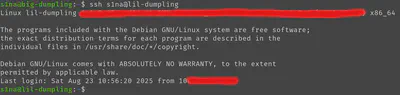
We will also need to perform passwordless ssh login to our remote server. The following generates a new private/public key pair and then copies the public key to our remote server. Our remote server is aptly named lil-dumpling.
ssh-keygen -t ed25519 -C "rsync backup key" -f ~/.ssh/rsync_backup_key
ssh-copy-id -i ~./ssh/rsync_backup_key.pub s1na@lil-dumpling
Add a ssh profile to our ~/.ssh/config file:
Host lil-dumpling
    HostName 10.77.88.1
    User s1na
    IdentityFile ~/.ssh/rsync_backup_key
The following script performs checks similarly to the previous 2 backup scripts. It checks that both locations exist, but also attempts to verify that there is no other borg processes currently executing. The script also checks the health of the output borg repos on the remote server after the job is complete.
Additionally, the rsync call also uses the -c flag to more securely and accurately detect changed files by calculating checksums to determine change. While slower, it ensures absolute data integrity which is a critical priority of this backup strategy.
#!/bin/bash

# Define variables
LOCAL_DIR="/mnt/bae"
REMOTE_DIR="/mnt/bak"
PARTIAL_DIR=".rsync-partial"
LOG_FILE="/var/log/rsync-to-lil-dumpling.log"
REMOTE_USER="s1na"
REMOTE_HOST="lil-dumpling"

# Function to send email via ntfy
send_email() {
    local subject=$1
    local message=$2
    curl \
        -H "Email: recipient.email.addr@gmail.com" \
        -H "Tags: cd" \
        -d "$subject $message" \
         http://192.168.1.76:10700/rsync-to-lil-dumpling
}


# Log function
log() {
    echo "$(date '+%Y-%m-%d %H:%M:%S') - $1" | sudo tee -a "$LOG_FILE" > /dev/null
}

# Start script
log "Backup process started."

# Check if backup directory exists
if [ ! -d "$LOCAL_DIR" ]; then
    log "Backup directory $LOCAL_DIR does not exist."
    send_email "Rsync Backup Failed" "Backup directory $LOCAL_DIR does not exist."
    exit 1
fi


# Check if backup directory exists
if ! ssh -o BatchMode=yes -o ConnectTimeout=10 "$REMOTE_USER@$REMOTE_HOST" "[ -d \"$REMOTE_DIR\" ]"; then
    log "Remote directory $REMOTE_DIR does not exist on $REMOTE_HOST."
    send_email "Rsync Backup Failed" "Remote directory $REMOTE_DIR does not exist on $REMOTE_HOST."
    exit 1
fi


# Check if partial directory exists
if ! ssh -o BatchMode=yes -o ConnectTimeout=10 "$REMOTE_USER@$REMOTE_HOST" "[ -d \"$REMOTE_DIR/$PARTIAL_DIR\" ]"; then
    log "Remote partial directory $REMOTE_DIR/$PARTIAL_DIR does not exist on $REMOTE_HOST."
    send_email "Rsync Backup Failed" "Remote partial directory $REMOTE_DIR/$PARTIAL_DIR does not exist on $REMOTE_HOST."
    exit 1
fi


# Check if any borg process is running
if ps aux | grep "[b]org" > /dev/null; then
    log "A Borg process is currently running. Aborting backup."
    send_email "Rsync Backup Failed" "Detected running borg process"
    exit 1
fi


# Rsync incremental backup
log "Starting rsync  backup..."
if sudo rsync -avcz --partial --partial-dir=$PARTIAL_DIR --progress -e "ssh -o BatchMode=yes -o ConnectTimeout=10" $LOCAL_DIR $REMOTE_USER@$REMOTE_HOST:$REMOTE_DIR; then
    log "Rsync backup completed successfully."
else
    log "Rsync backup failed."
    send_email "Rsync backup to lil-dumpling Failed" "Rsync backup failed."
    exit 1
fi


# Verifying integrity of rsynced borg dirs
log "Checking Borg integrity on $REMOTE_HOST..."
# Get list of subdirectories on remote
borg_dirs=$(ssh "$REMOTE_USER@$REMOTE_HOST" "find '$REMOTE_DIR' -mindepth 1 -maxdepth 1 -type d")

# Loop over each Borg repo dir
for borg_dir in $borg_dirs; do
    log "Checking: $borg_dir"
    # Run borg check remotely
    ssh "$REMOTE_USER@$REMOTE_HOST" "borg check --verify-data '$borg_dir'"
    RC=$?

    if [ $RC -eq 0 ]; then
        log "Repo $borg_dir valid"
    elif [ $RC -eq 1 ]; then
        log "Repo $borg_dir valid with warnings"
        send_email "Borg health checks" "Borg repo $borg_dir valid but with warnings???"
    else
        log "Repo $borg_dir unhealthy"
        send_email "Borg health check failed" "Borg repo $borg_dir unhealthy"
        exit 1
    fi
done


log "Rsync Backup process completed successfully."
send_email "Rsync Backup Successful" "Rsync Backup process completed successfully. See log for details: $LOG_FILE"
exit 0
# runs every Tuesday and Saturday of the month at 6:00 AM MST.
0 6 * * 2,5 /mnt/f15/desktop/backup-scripts/rsync_to_lil_dumpling.sh
Testing of backups
Backups require periodic testing to ensure they actually work. Nothing is worse than finding out your backups are corrupted, malformed, improperly copied, or otherwise unuseable when push comes to shove and you actually suffer a tragic data loss incident.
Simulating such an incident in our implementation is even simpler thanks to the use of docker containers which make spinning up and down applications and cleaning up applications incredibly easy and elegant.
Testing the resiliency of our backup strategy is as simple as spinning down the self-hosted applications on our main prod application server, unmounting the primary harddisk, extracting the borg backup repos on the local secondary harddisk, and spinning up the containers using docker compose and then verifying the integrity and availability of application data. The following details these steps:
# spins down all running docker containers
docker stop $(docker ps -q)
# unmounts the primary prod harddisk
sudo umount /mnt/f15
# extracts a backup copy
mkdir /mnt/bae/docker-containers
borg extract --progress --verbose /mnt/bae/borg-backup-dir::docker-backup-2025-06-19 /mnt/bae/docker-containers
# spins up the container from the extracted backup. A bash script could be
# written for this step to iteratively spin up all backed up apps
cd /mnt/bae/docker-containers/some-app
docker compose up -d
#clean up
cd /mnt/bae/docker-containers/some-app
docker compose down
rm -rf /mnt/bae/docker-containers
Alternatively, similarly testing the remote offsite backups is also possible by simply extracting the borg backups on the remote server locally and spinning them up and comparing with the prod application counterparts without actually having to spin down the prod applications themselves:
# On the remote offsite server
mkdir /mnt/remote/docker-containers
borg extract --progress --verbose /mnt/bak/borg-backup-dir::docker-backup-2025-06-19 /mnt/remote/docker-containers
# spin up the container from the extracted backup. A bash script could be
# written for this step to iteratively spin up all backed up apps
cd /mnt/remote/docker-containers/some-app
docker compose up -d
#clean up
cd /mnt/remote/docker-containers/some-app
docker compose down
rm -rf /mnt/remote/docker-containers